DailyMed Label Section Finder
Problem: You are looking at a DailyMed "Full Label" page and see a wall of legalistic text.
Solution: Select what you need to find below. This tool will tell you exactly which section header to search for (using Ctrl+F or Cmd+F) based on the standard FDA SPL format.
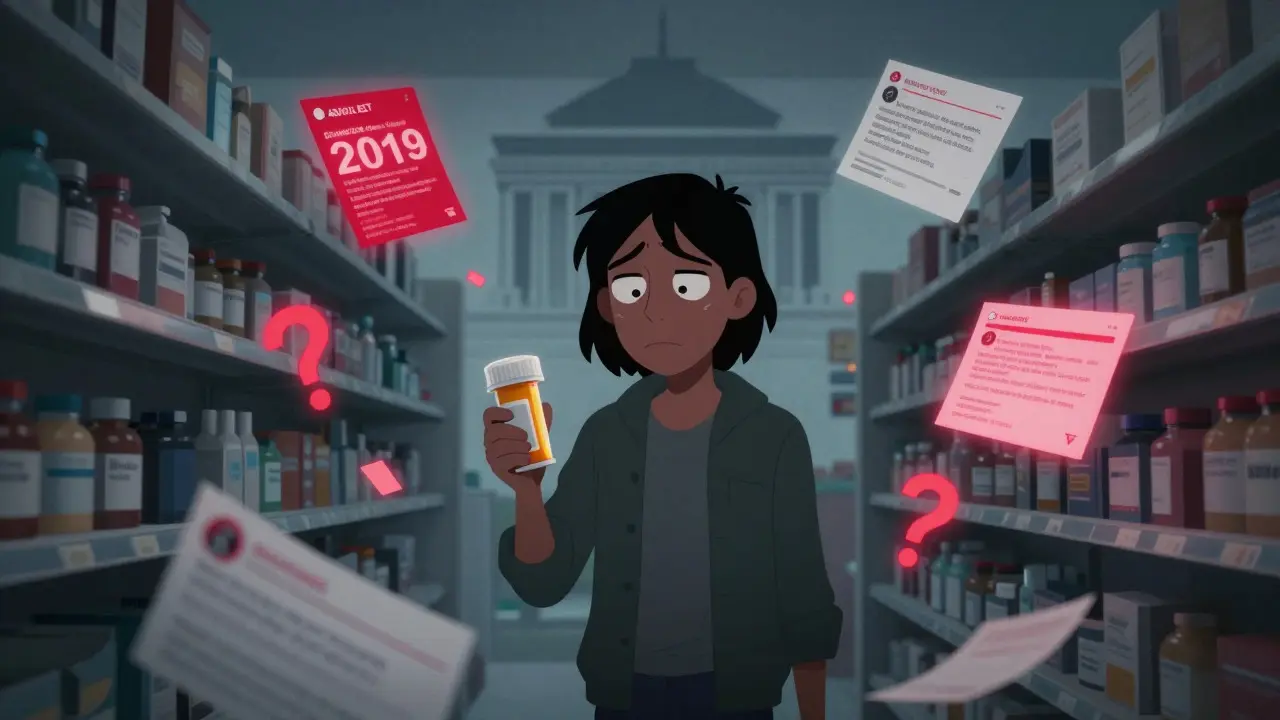
You just picked up a new prescription. The pharmacist hands you the bottle, but something in your head clicks-a friend mentioned a rare headache issue with this med, or maybe you’re taking another drug that might clash. You pull out your phone to check, but which site do you trust? Google results are cluttered with ads for generic versions or outdated forums from 2019. You need the source. You need the label exactly as the Food and Drug Administration (FDA) approved it.
That source is DailyMed, maintained by the National Library of Medicine (NLM). It is not a blog, not a commercial database, and not an opinion piece. It is the official repository for Structured Product Labeling (SPL)-the exact electronic files pharmaceutical companies submit to the FDA. When a manufacturer updates a warning or adds a side effect, they file it here first. If it’s not on DailyMed, it hasn’t officially happened yet in the eyes of federal regulators.
Navigating DailyMed can feel clunky if you’ve never used it. It looks like a government database from the early 2000s because, functionally, it is a raw data dump designed for accuracy over aesthetics. But once you know where to click, it becomes the most powerful tool in your health toolkit. Here is how to cut through the noise and find the specific safety data you need.
Why DailyMed Beats Commercial Drug Databases
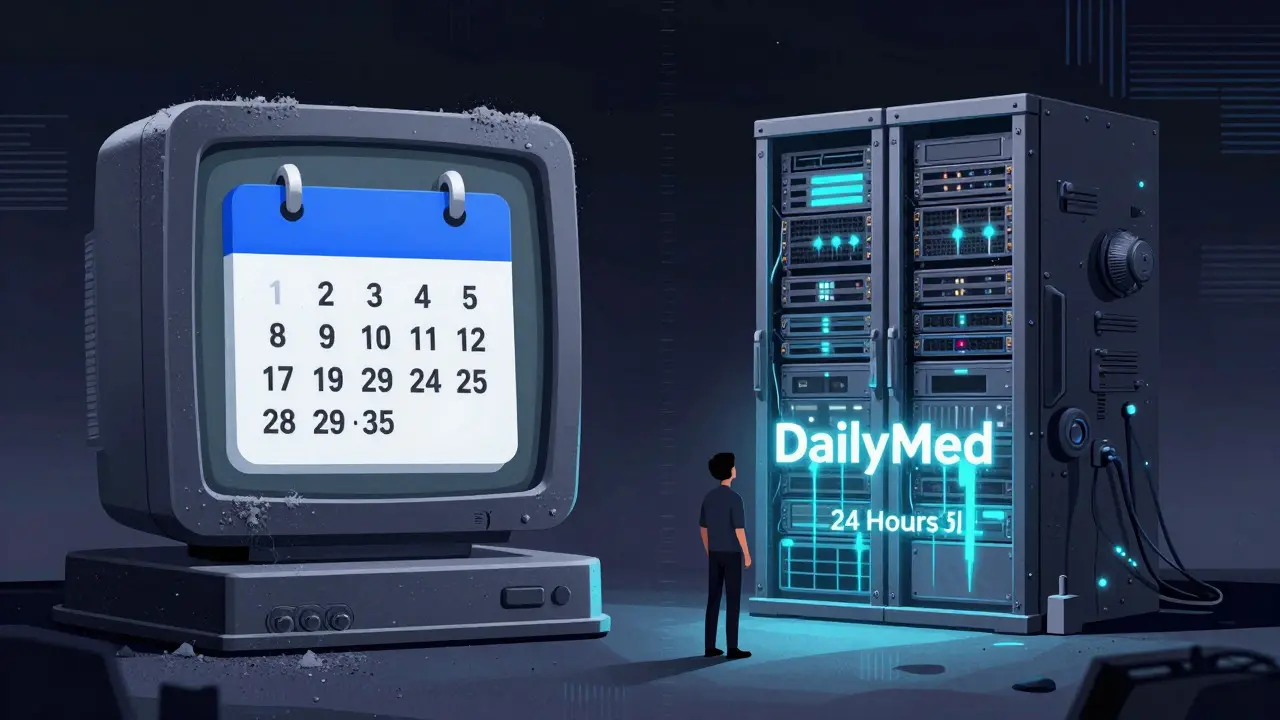
Most people use apps like WebMD or Epocrates. These are great for quick summaries, but they lag behind. Commercial databases often take weeks or months to update their content after the FDA approves a change. DailyMed updates within 24 hours of the FDA receiving the submission from the manufacturer. According to internal metrics from the NLM, 92% of medication safety alerts appear on DailyMed before any other public resource.
The difference matters when seconds count. Imagine a doctor prescribing a new chemotherapy protocol. They need to know if a specific manufacturer changed the dosage instructions yesterday. A commercial app might still show last year’s version. DailyMed shows today’s. It contains over 150,000 drug labels, covering everything from human prescriptions to animal drugs and medical gases. It is the single source of truth for current labeling.
However, there is a trade-off. DailyMed is not user-friendly. It lacks the polished interface of consumer apps. You won’t find cute icons or simplified language. You will find dense, legalistic text written by pharmacists and lawyers. Your job is to translate that density into actionable knowledge. That starts with knowing how to search correctly.
Finding the Right Drug: Search Strategies That Work
The biggest mistake users make is searching only by the brand name. If you type "Tylenol," you get dozens of results. Tylenol comes in regular strength, extra strength, PM, Cold & Flu, and various liquid forms. Each has a different label. To get the right one, you need precision.
Use the National Drug Code (NDC). This is the 10-digit number printed on your pill bottle box. It identifies three things: the company that made it, the specific product, and the package size. When you enter the NDC into the DailyMed search bar (top right corner), you bypass all the guesswork. You land directly on the label for that exact physical product in your hand.
If you don’t have the NDC handy, use the autocomplete feature. As you type the drug name, DailyMed suggests matches. This reduces naming errors by over 60%, according to 2025 NLM data. Pay attention to the manufacturer listed next to the drug name. Generic versions from Company A might have slightly different inactive ingredients than Company B, leading to different allergy warnings. Always verify the maker matches your prescription.
For advanced users, the "Advanced Search" option allows filtering by section title. If you are researching a specific class of drugs, you can filter for labels containing "ADVERSE REACTIONS" in the text. This is useful for researchers or clinicians doing broad sweeps, but for most people, the NDC search is the gold standard.
| Resource | Update Speed | Best For | Limitations |
|---|---|---|---|
| DailyMed | Within 24 hours of FDA receipt | Current legal labeling, precise NDC lookups | Clunky interface, dense legal text |
| FDALabel | Synced with DailyMed | Researchers, bulk data analysis, full-text search | Complex query builder, less intuitive for casual users |
| Drugs@FDA | Historical focus | Approval history, clinical trial data | Not for current side effect info |
| Commercial Apps (e.g., WebMD) | Weeks to months lag | Patient-friendly summaries, interaction checks | Outdated warnings, advertising clutter |
Locating Side Effects and Warnings
Once you are on the drug’s page, you see a wall of text. Don’t panic. Every FDA label follows a strict structure mandated by the SPL format. You don’t need to read it all. You need to jump to the sections that matter.
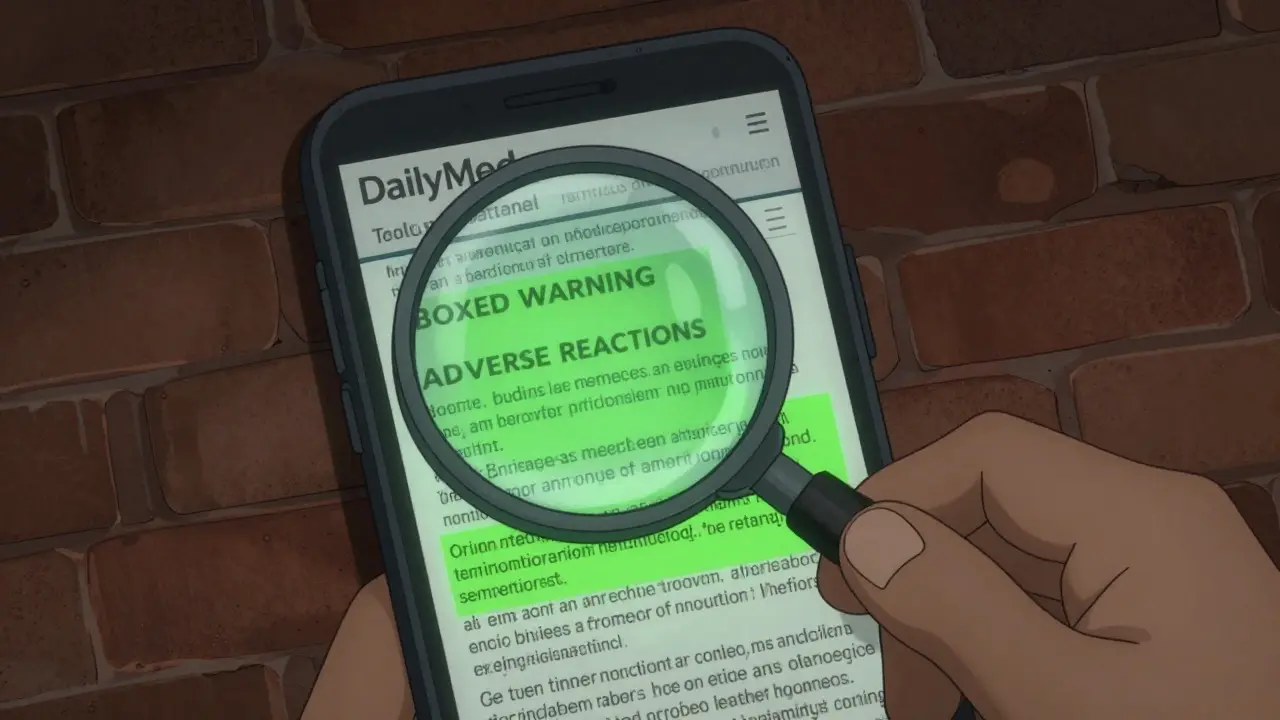
Click the "Full Label" link. This opens the complete document. Use your browser’s "Find" function (Ctrl+F or Cmd+F) to search for these key terms:
- BOXED WARNING: This is the strongest warning the FDA allows. It appears at the very top of the label. If a drug has a boxed warning, it means there is a serious risk of death, permanent disability, or severe toxicity. Read this first.
- INDICATIONS AND USAGE: What is this drug actually approved to treat? Sometimes doctors prescribe "off-label." This section tells you what the FDA officially says the drug does.
- WARNINGS AND PRECAUTIONS: This section details risks that aren’t quite "boxed" level but still require careful monitoring. Look for interactions with alcohol, driving, or pregnancy.
- ADVERSE RECTIONS: This is the list of side effects. It is usually Section 6. It breaks down reactions by frequency (common, uncommon, rare) and system (nervous system, gastrointestinal, etc.). This is where you find the headache issue your friend mentioned.
- DRUG INTERACTIONS: Critical if you take multiple medications. This lists known chemical clashes that could reduce efficacy or increase toxicity.
A common frustration among healthcare professionals is navigating to these sections manually. In 2025, 68% of surveyed users reported difficulty finding specific sections quickly. The workaround is simple: bookmark the "Full Label" view for frequently checked drugs, or use the browser search trick mentioned above. There is no dropdown menu yet, though the NLM plans to improve mobile navigation in early 2026.
Understanding the Data: Effective Time and Versions
Here is a tricky part: a single drug can have multiple labels on DailyMed. Why? Because manufacturers update them constantly. Maybe they change the font size, add a new case study, or revise a dosage chart. DailyMed keeps every version.
Look for the "Effective Time" field near the top of the label page. This timestamp tells you when that specific version became active. Always ensure you are looking at the most recent effective time. If you see two labels for the same NDC, compare the dates. The older one is historical context; the newer one is your current reality.
This version control is vital for legal and clinical accuracy. In one documented case, an oncologist identified a critical dosage change for a specific manufacturer’s product by checking the effective time on DailyMed, a change that hadn’t yet propagated to his hospital’s internal database. Relying on cached or old versions can lead to dangerous assumptions.
Alternatives and Advanced Tools
If DailyMed feels too basic, consider FDALabel. Also run by the FDA, FDALabel offers more sophisticated search capabilities. You can search across all labels simultaneously for specific phrases, filter by marketing category, or export data to spreadsheets. It is better suited for researchers analyzing trends across thousands of drugs rather than patients checking a single prescription.
For general consumers, the learning curve of DailyMed is steep. The NLM estimates it takes about 3.2 hours for a new user to become proficient in locating specific sections. If you struggle, start with the NLM’s video tutorials, specifically the "Product Guides: DailyMed" series on YouTube. They walk through the interface step-by-step.
Remember, DailyMed is part of a larger ecosystem. The FDA Adverse Event Reporting System (FAERS) collects patient reports of side effects. While FAERS doesn’t tell you what *should* happen (that’s the label), it tells you what *is* happening in the real world. Using DailyMed for the official risks and FAERS for real-world anecdotes gives you the complete picture.
Troubleshooting Common Issues
Sometimes, the search returns nothing. Check your spelling. DailyMed is case-sensitive in some advanced filters. If you are searching for a generic drug, try adding the manufacturer’s name. If you are looking for a combination drug (like Amoxicillin/Clavulanate), ensure you include both components in the search.
If the label seems missing, check if the drug is still marketed. DailyMed contains labels for currently marketed products. Discontinued drugs may be archived but not always easily searchable via the main interface. In these cases, the Internet Archive or specialized historical databases might be necessary.
Finally, keep in mind that DailyMed is U.S.-centric. If you are outside the United States, your local regulatory body (like the EMA in Europe or Health Canada) maintains similar repositories. The principles remain the same: find the official regulator’s database, use the unique product identifier, and read the adverse reactions section carefully.
Is DailyMed information free to access?
Yes. DailyMed is a public service provided by the National Library of Medicine (NLM) and the NIH. There are no subscription fees, paywalls, or registration requirements. All drug labels are available for immediate download and viewing.
How often is DailyMed updated?
DailyMed is updated daily. Pharmaceutical companies are required to submit changes to the FDA in Structured Product Labeling (SPL) format. Once received, the FDA processes these submissions, and they typically appear on DailyMed within 24 hours.
What is an NDC code and why is it important?
The National Drug Code (NDC) is a unique 10-digit number that identifies the labeler, the specific product, and the package size. Using the NDC ensures you are viewing the label for the exact drug product you have, avoiding confusion between different manufacturers or dosages of the same medication.
Can I trust DailyMed more than WebMD or Drugs.com?
For the most current and legally authoritative information, yes. DailyMed hosts the original documents submitted to the FDA. Commercial sites like WebMD often summarize this data and may lag behind in updates by weeks or months. However, commercial sites may offer easier-to-read summaries and interaction checkers.
Where do I find side effects on a DailyMed label?
Side effects are typically listed under the section titled "ADVERSE REACTIONS," which is usually Section 6 of the label. You can also look for "WARNINGS AND PRECAUTIONS" for broader safety risks. Use your browser's search function (Ctrl+F) to jump directly to these headings.
Does DailyMed include over-the-counter (OTC) drugs?
Yes. DailyMed includes labeling for both prescription and nonprescription (OTC) drugs for human use. You can filter search results by drug type to narrow down to OTC products specifically.